Password & 2FA
Manages your account’s security: your password, two-factor authentication (2FA), and - if you ever need it - deleting your own account.
-
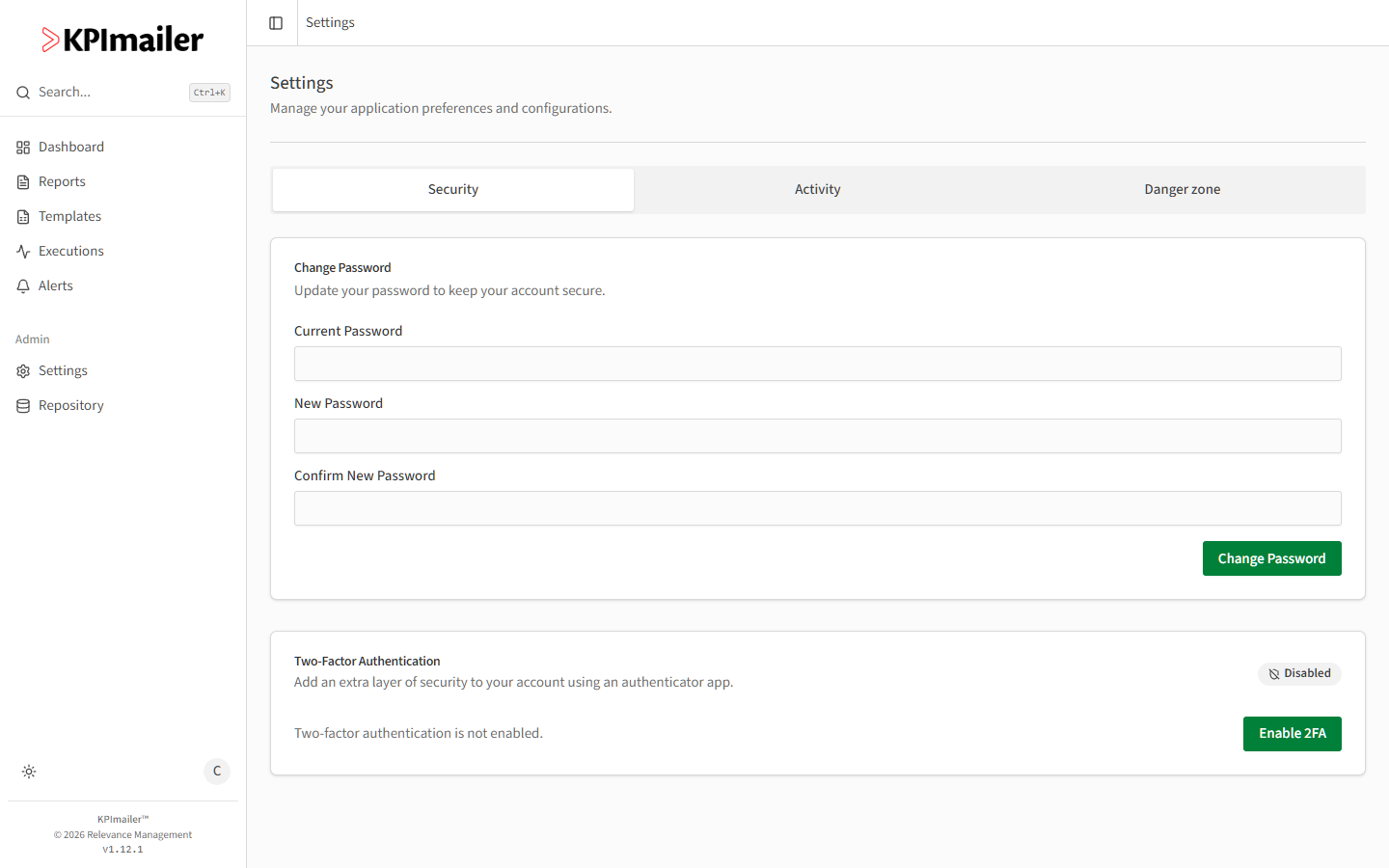
Select your avatar in the top-right corner, then Settings (or press Ctrl+,). The Security tab is selected by default.
-
To change your password, enter your Current Password, then a New Password and Confirm New Password, and select Change Password.
-
To turn on 2FA, select Enable 2FA and follow the QR code setup - see Two-factor authentication for the full walkthrough, including saving your backup codes.
Deleting your account
Section titled “Deleting your account”The same Settings page has a Danger zone tab, separate from Security and Activity.
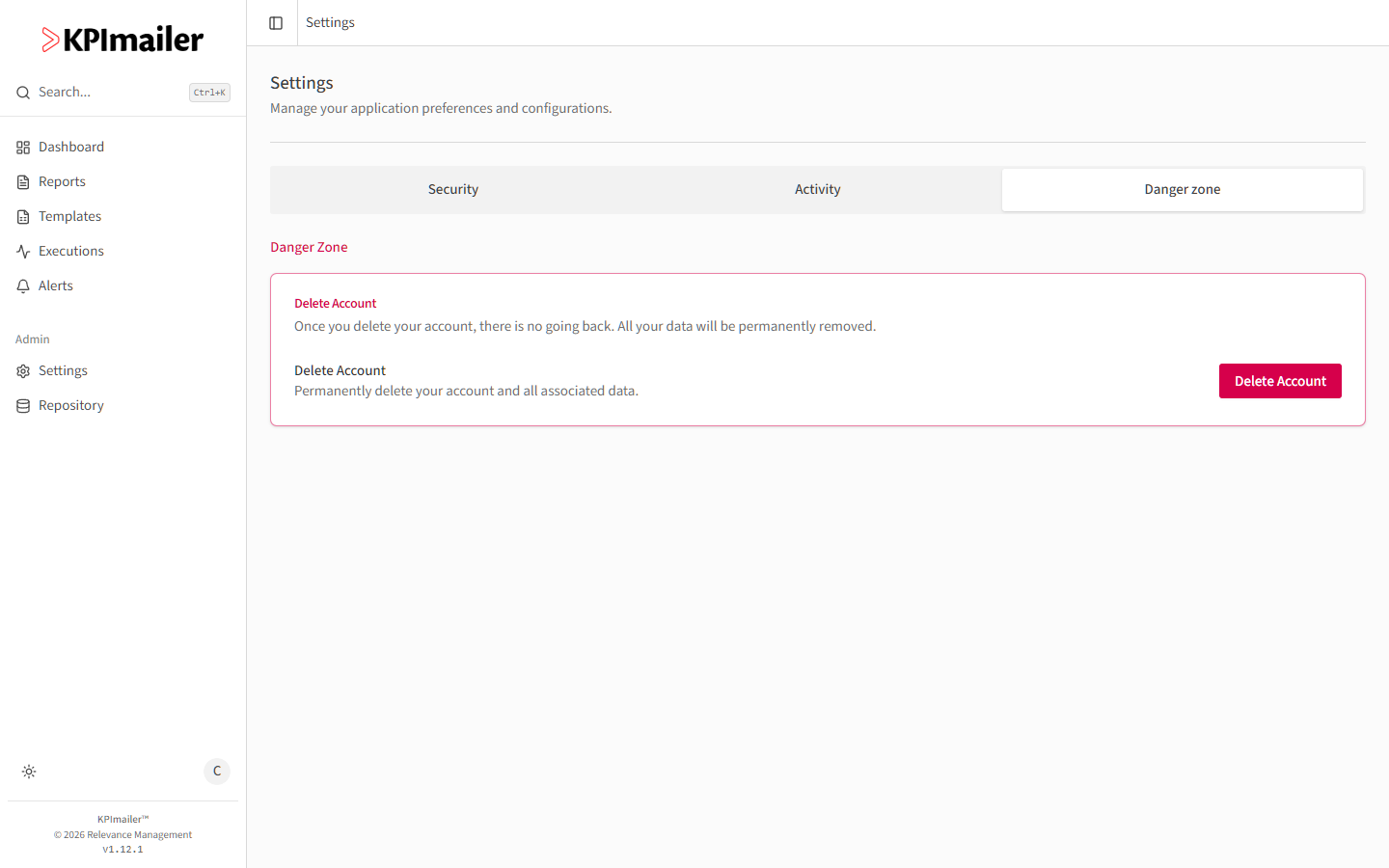
Selecting Delete Account here permanently removes your own account and all its associated data - there is no undo.
Worked example
Section titled “Worked example”After a password policy update, a user opens Settings → Security, enters their current password and a new one twice to confirm, and selects Change Password. They then notice 2FA is still Disabled and turn it on while they’re there, scanning the QR code and saving the backup codes it provides.