Sections & conditional rendering
Lets a region of the canvas appear in the email only when a condition you set is true - for example, only showing a “top performers” block when there is one.
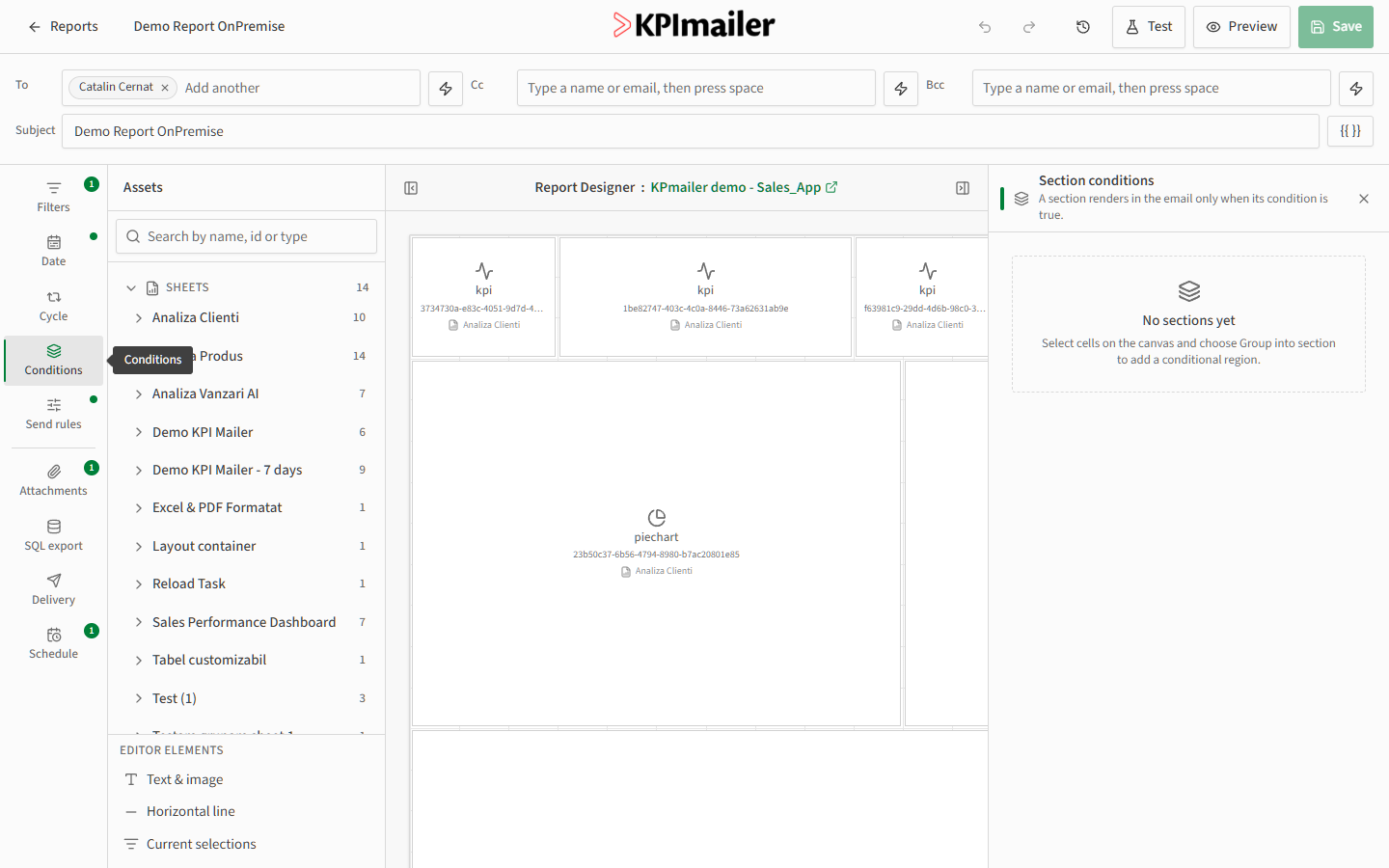
- On the Design canvas, marquee-select the cells you want to group (click and drag a selection box around them).
- With the cells selected, choose Group into section from the selection menu. The grouped cells get a visible section frame on the canvas.
- Open the Conditions tab in the data-scope rail and select the new section.
- Build the condition: pick a Qlik measure or dimension, a comparator, and a value to compare against - the same rule-builder style used for send rules.
- Save. When the report runs, KPImailer evaluates the condition against live data; the section appears in the email only if it’s true, and is skipped entirely otherwise.
Worked example
Section titled “Worked example”A regional sales report includes a “Needs attention” block listing underperforming stores. The author marquee-selects that block, groups it into a section, and sets its condition to Sales vs target is less than 90%. Most weeks the block is empty and the section is hidden automatically; in a slow week it appears with the relevant stores listed.