Recipients & groups
Controls who receives a report: people and groups from a shared registry, addressed directly, or dynamically from a live Qlik field.
Addressing a report
Section titled “Addressing a report”At the top of the editor, the To, Cc, and Bcc fields work like a mail client: start typing a name or email and pick a match from the registry, or enter a new email address directly.
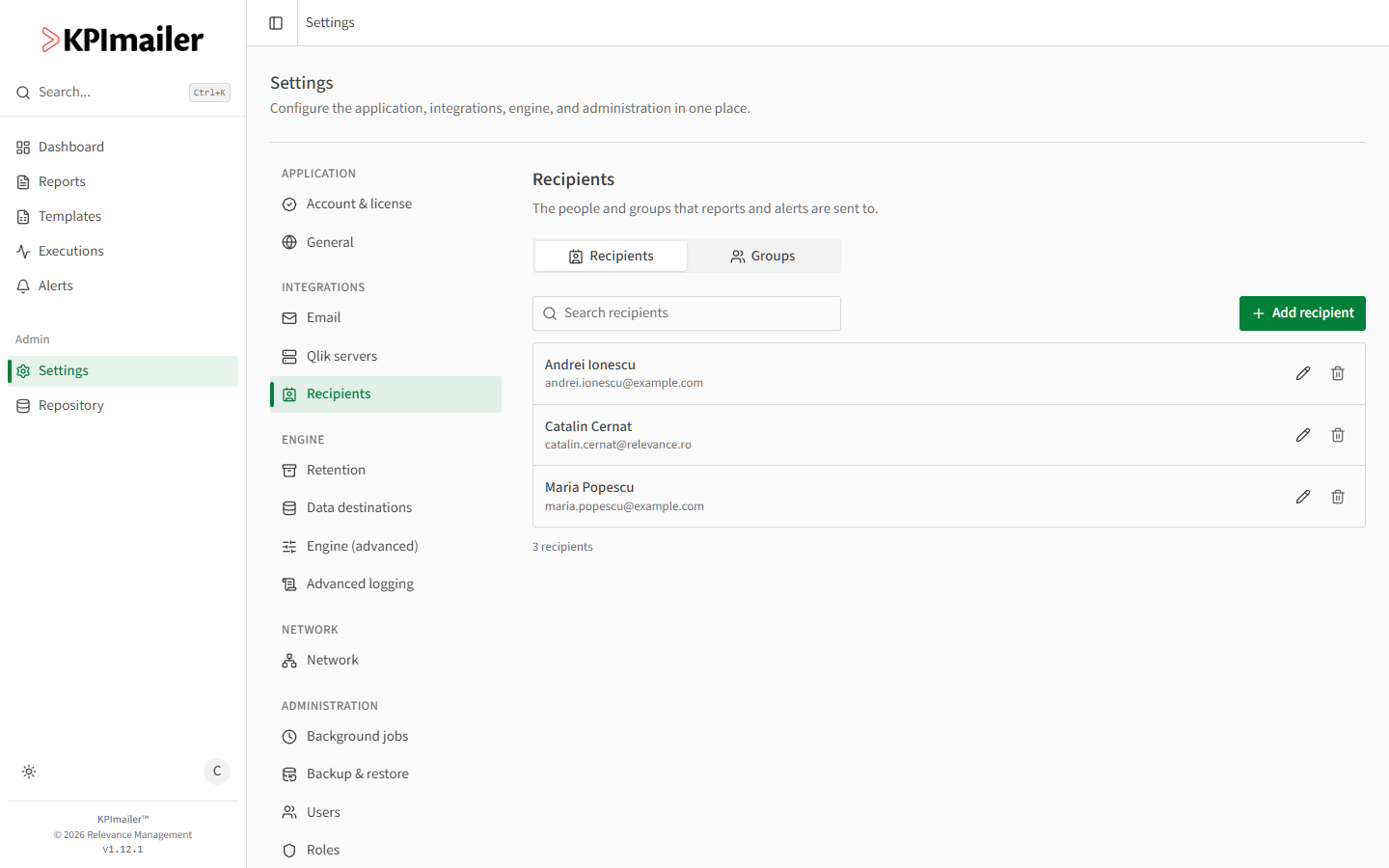
The recipient registry
Section titled “The recipient registry”Recipients you’ve sent to before, or added explicitly, live in a shared registry under Settings → Recipients, so they’re easy to find again on future reports and shared across reports and alerts. Select Add recipient to add someone with just a name and email.
Groups
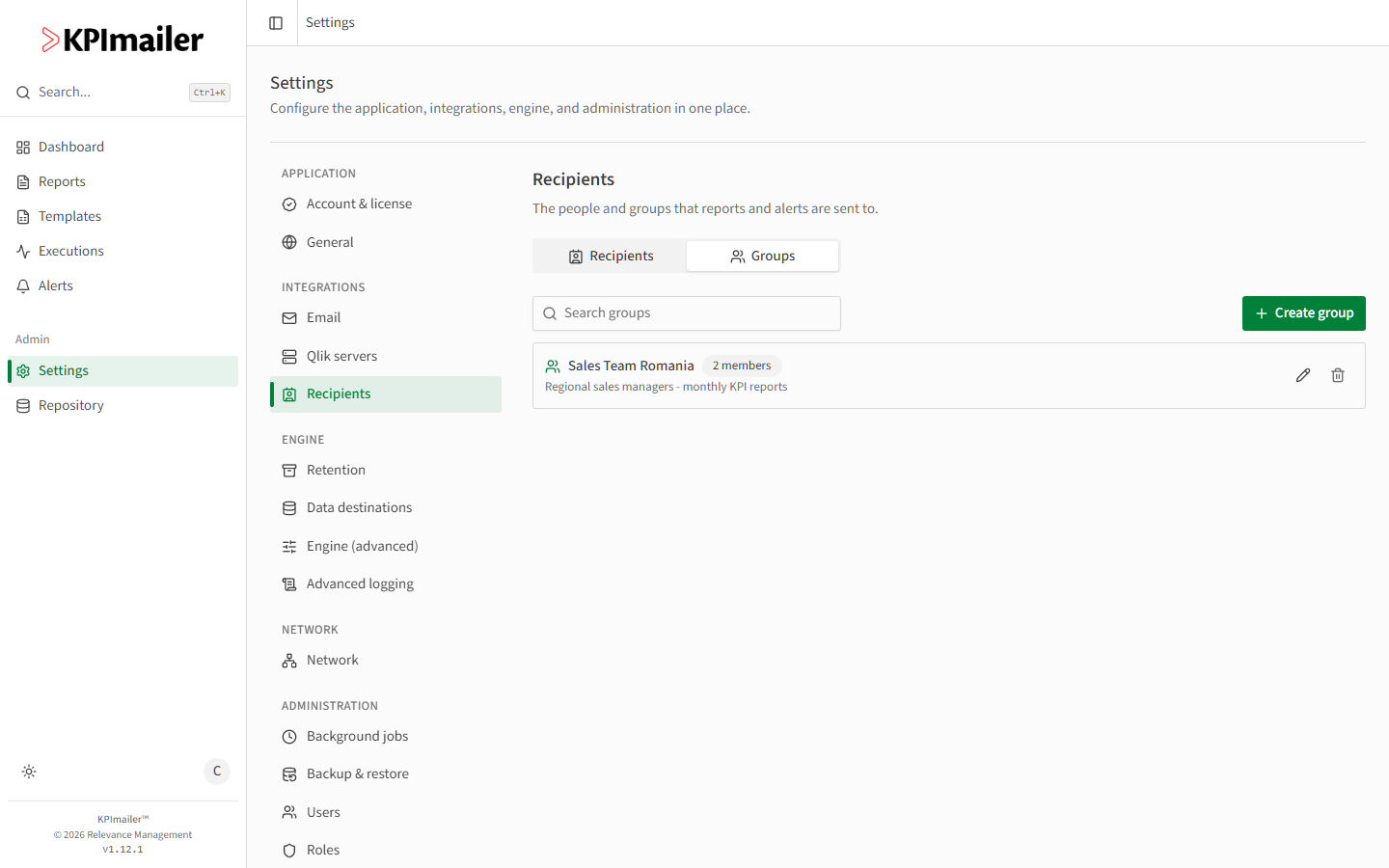
Section titled “Groups”Group recipients who regularly receive the same reports - a sales team, a region, a distribution list - into a named group under the Groups tab, then address the whole group at once instead of adding each person individually.
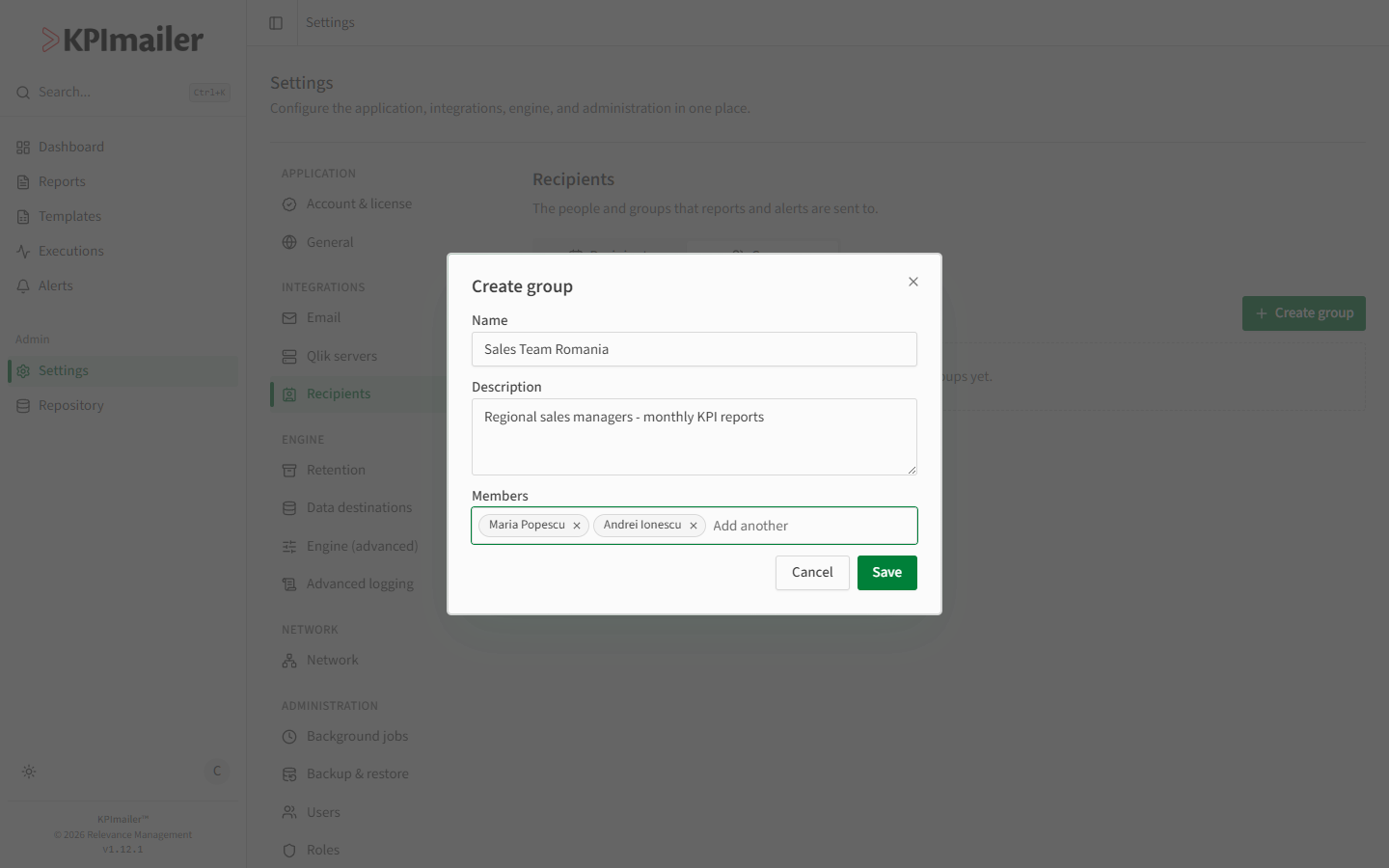
Select Create group, give it a name and an optional description, and add members by searching the registry. The group then appears alongside individual people when you type in the To field.
Dynamic recipients
Section titled “Dynamic recipients”Select the lightning-bolt Dynamic Qlik field icon next to To, Cc, or Bcc to address the report using a live Qlik field instead of a fixed list - each value of the field becomes a recipient at send time.
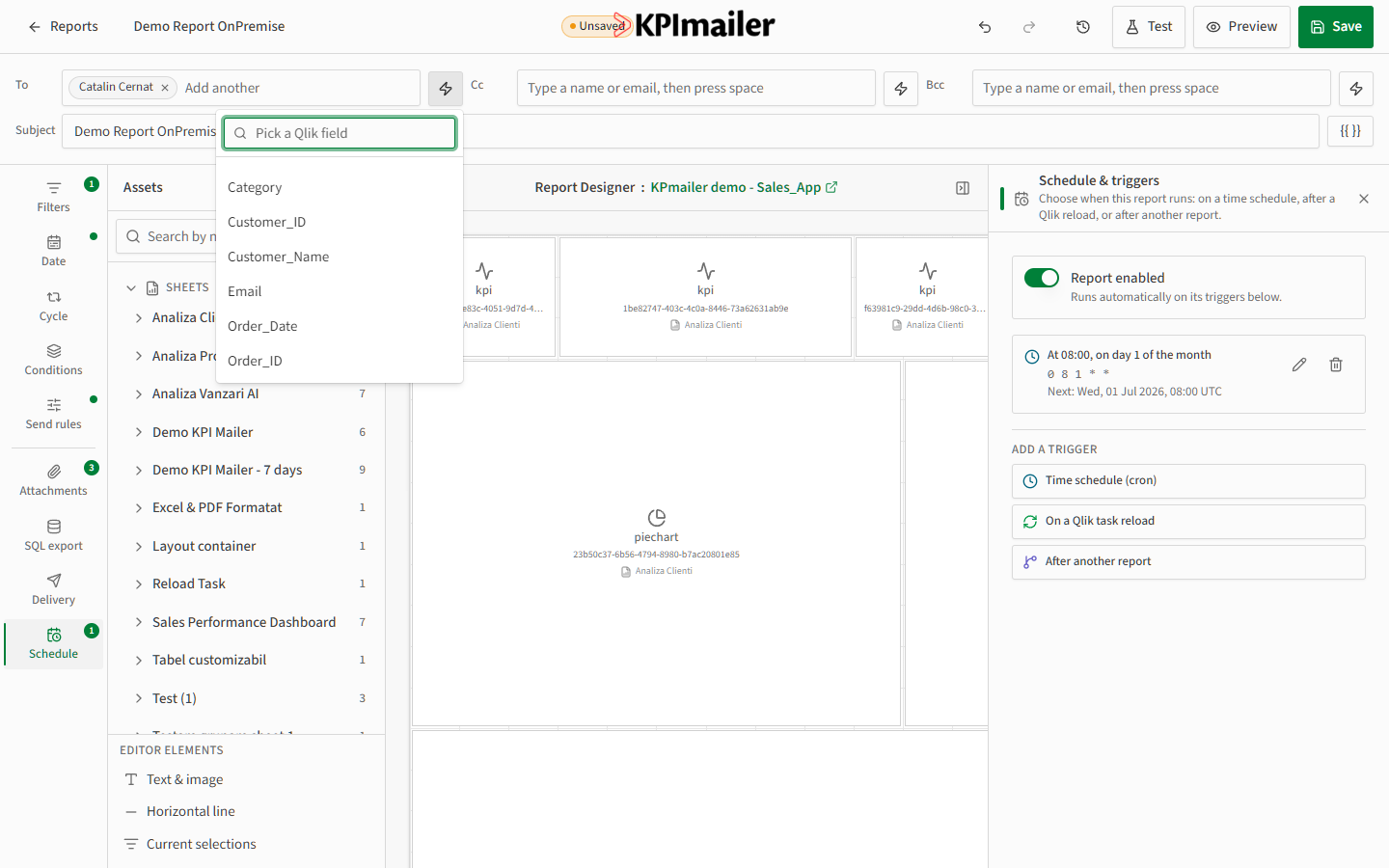
This is most useful paired with bursting: burst by the same field (for example, a customer ID) and use a dynamic Email field on the To line, so each burst copy is automatically addressed to the right person without maintaining a manual list.
Worked example
Section titled “Worked example”A monthly commission report bursts one copy per sales rep. Instead of maintaining a
recipient list that needs updating every time someone joins or leaves the team, the report
author sets the Cycle field to Rep_ID under Data and sets
the To field’s dynamic source to the Rep_Email Qlik field - new reps start receiving
their copy automatically the next time they appear in the data.