Scheduling & triggers
Decides when a report runs, automatically: on a recurring time schedule, right after a Qlik task reloads, or after another report finishes - a report can have more than one trigger.
- Open the Schedule tab in the data-scope rail. Make sure Report enabled is on - triggers only fire while it is.
- Under Add a trigger, choose a trigger type and configure it (each type is covered below). Add as many as you need; existing triggers are listed above with Edit and Remove actions.
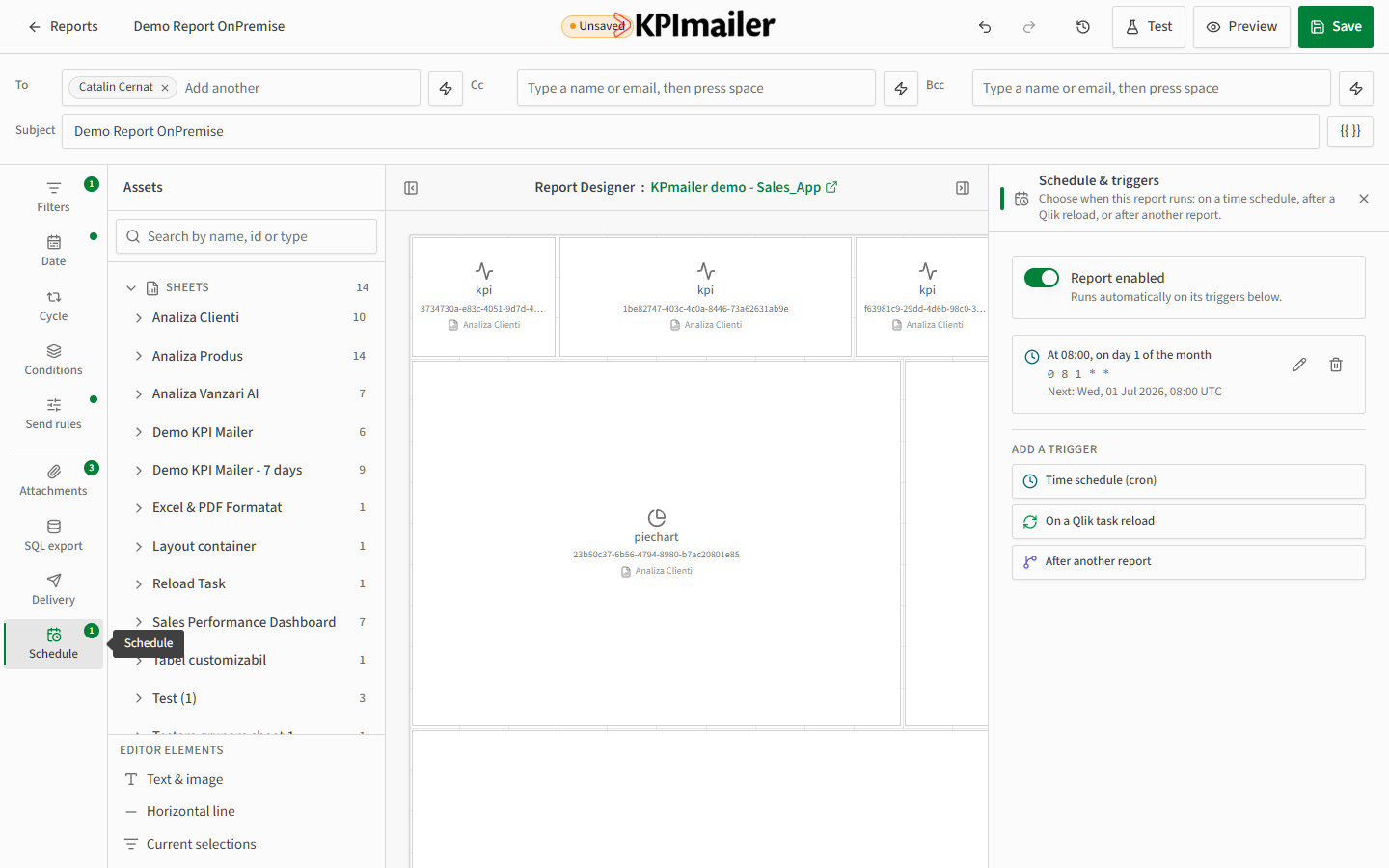
Time schedule (cron)
Section titled “Time schedule (cron)”Choose Time schedule (cron) to run on a recurring schedule, built visually - no need to hand-write cron syntax.
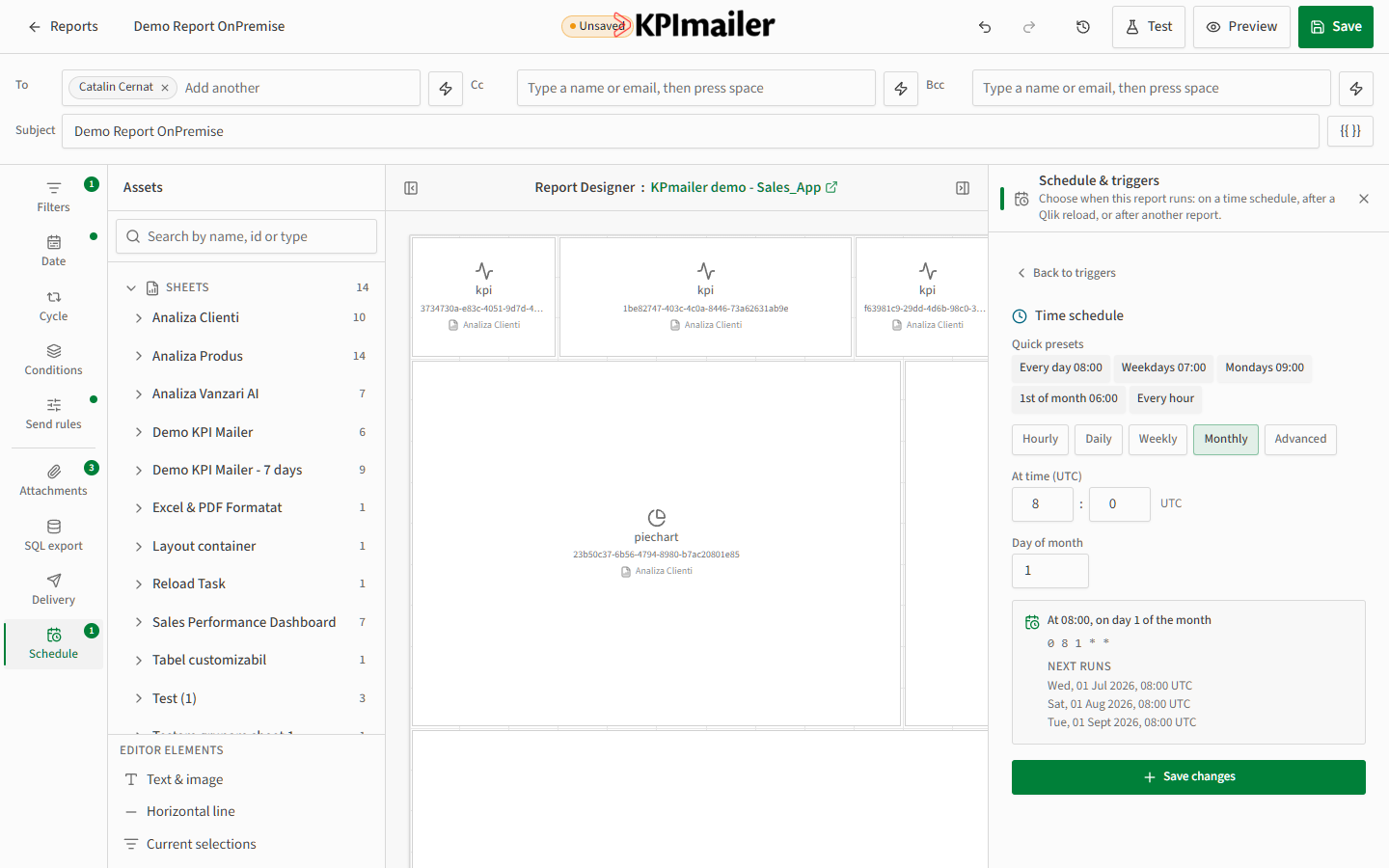
Pick a Quick preset for common patterns, or use the Hourly / Daily / Weekly / Monthly / Advanced tabs to build a custom schedule and set the time (in UTC). The panel shows the equivalent cron expression and the next few run times, so you can confirm it does what you expect before saving.
On a Qlik task reload
Section titled “On a Qlik task reload”Choose On a Qlik task reload to run right after a specific Qlik reload task completes, instead of (or in addition to) a time schedule.
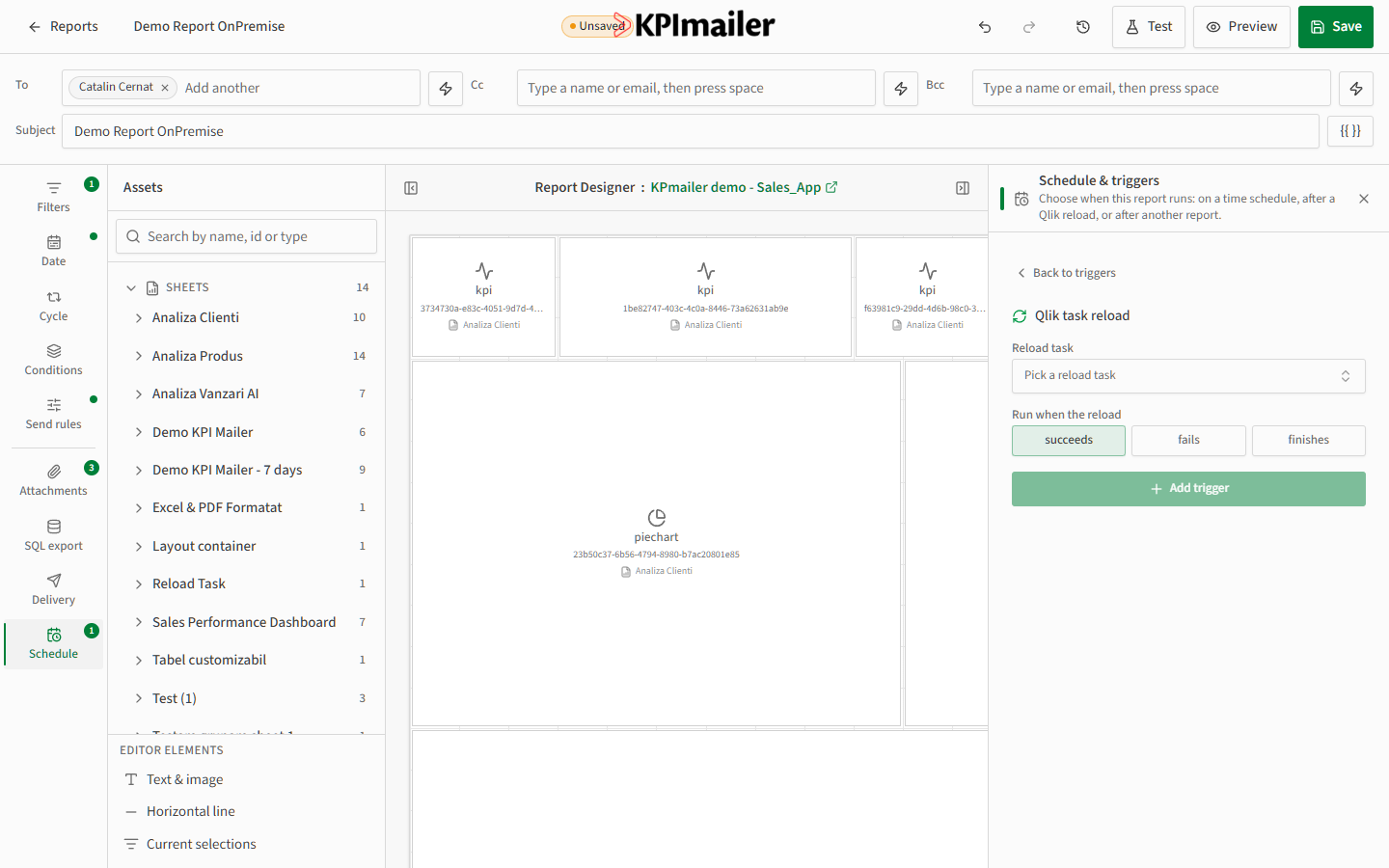
Pick the Reload task from your connected Qlik servers, and choose whether to run when it succeeds, fails, or simply finishes either way - useful for reporting on data the moment it’s fresh, or for alerting when a reload fails.
After another report (report chaining)
Section titled “After another report (report chaining)”Choose After another report to chain this report to run once another one finishes successfully - useful for building a sequence, like a detailed report that should only run after a summary report has confirmed the data is ready.
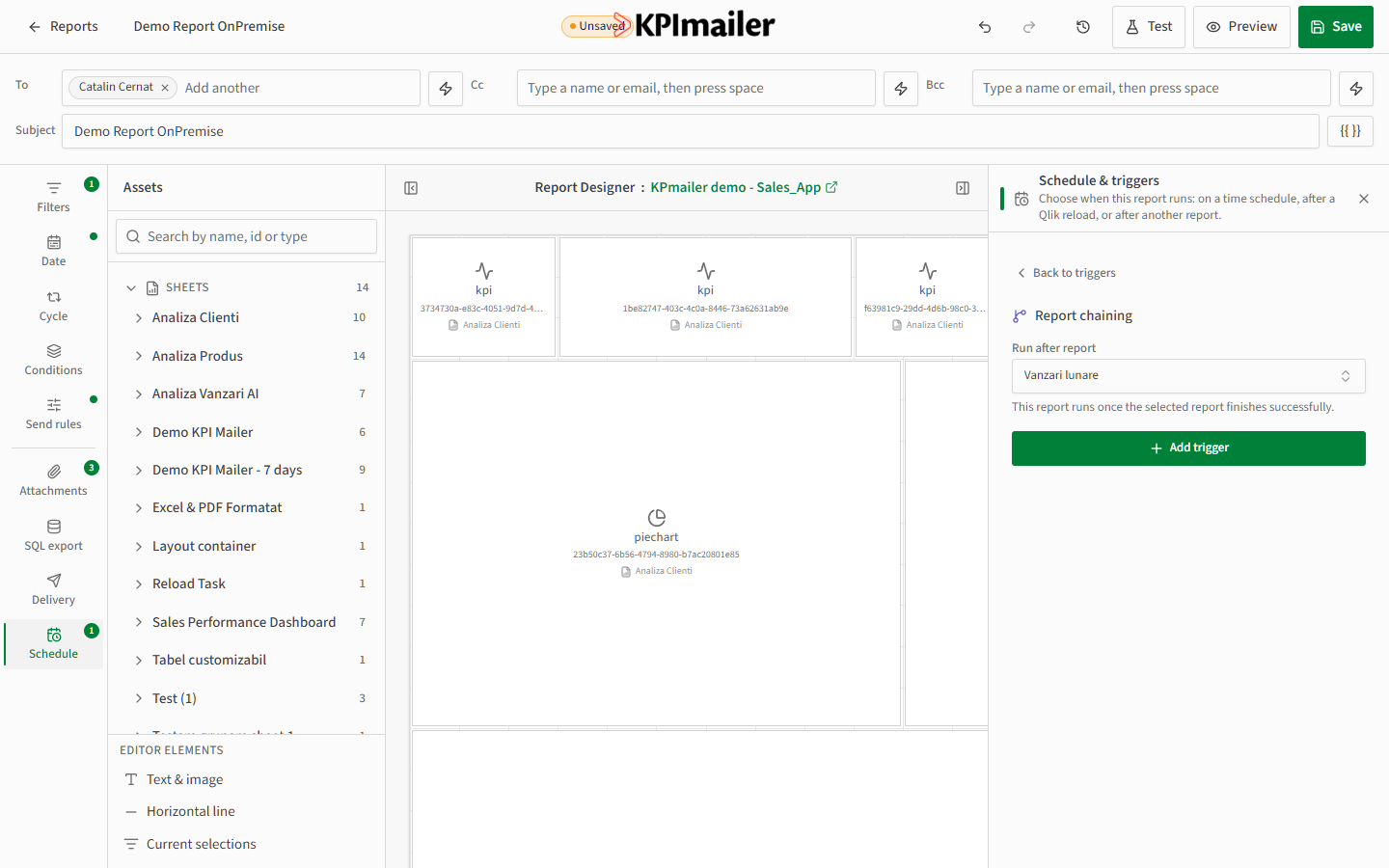
Pick the report to chain after. This one runs automatically once that report’s run completes successfully.
Worked example
Section titled “Worked example”A monthly report should run on the 1st at 08:00, and a related drill-down report should follow it automatically once the first finishes. On the summary report, add a Time schedule (cron) trigger using the 1st of month 06:00 preset adjusted to 08:00. On the drill-down report, add an After another report trigger pointing at the summary report - no separate schedule needed for it.