License & organization
Shows whether your installation’s license is valid, and holds the organization and contact details sent to the licensing service.
-
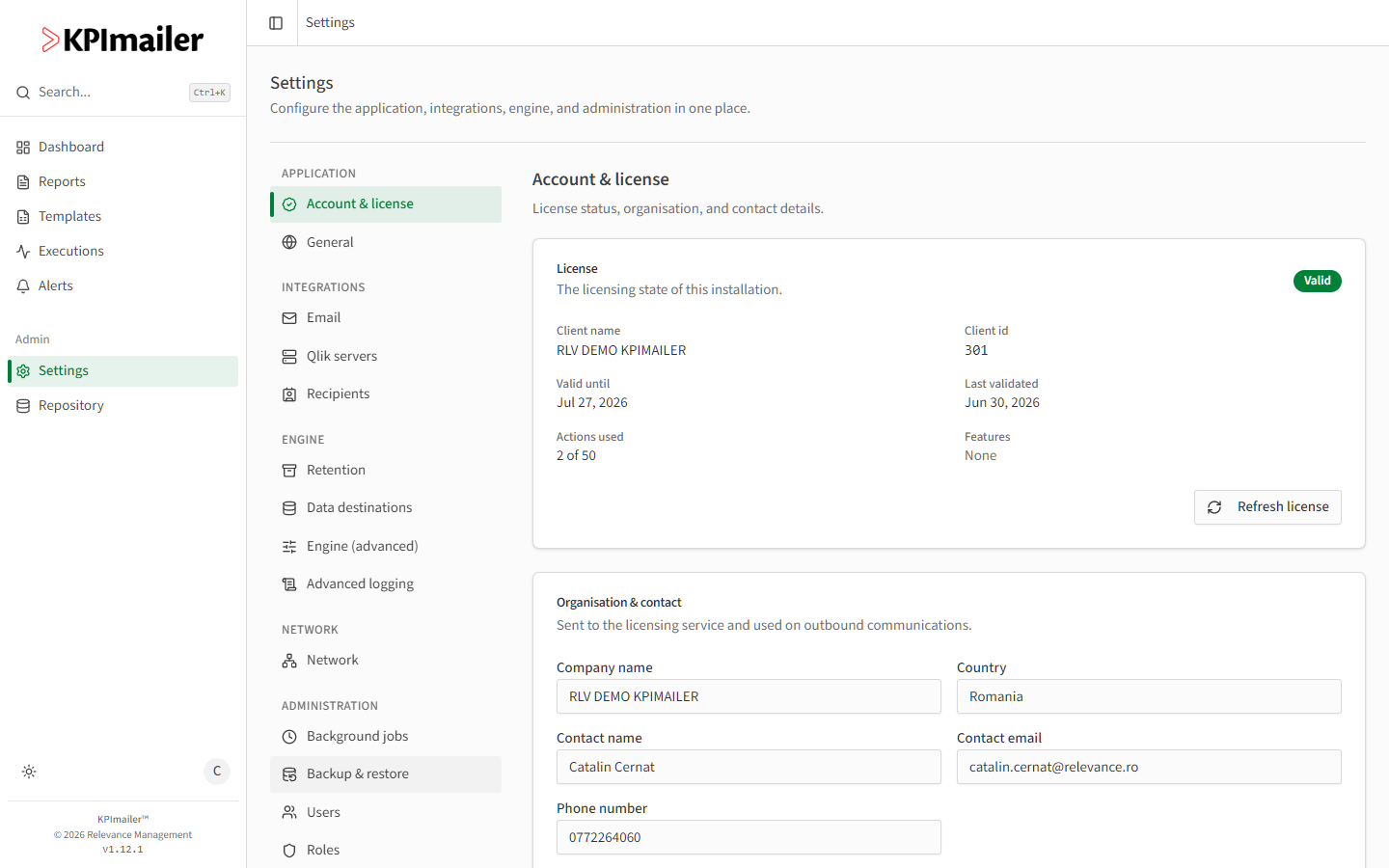
Open Settings → Account & license. The License card shows the current status (Valid or otherwise), your Client name and Client id, the Valid until date, when it was Last validated, your Actions used count, and any licensed Features.
-
Select Refresh license to re-sync the status immediately - useful right after renewing or upgrading, instead of waiting for the next automatic check.
-
Under Organisation & contact, keep the Company name, Country, Contact name, Contact email, and Phone number current. These are sent to the licensing service and used on outbound communications, so they should point at whoever owns the KPImailer relationship at your organization.
-
Select Save changes after editing the organization fields.
Worked example
Section titled “Worked example”A license is about to expire. An administrator opens Account & license, sees Valid until is two days away, renews with Relevance Management, then selects Refresh license
- the status updates to the new Valid until date without needing to restart the application.