Backup & restore
Automatically backs up the application database on a recurring schedule, and lets you run, download, or restore a backup on demand.
Set the backup schedule
Section titled “Set the backup schedule”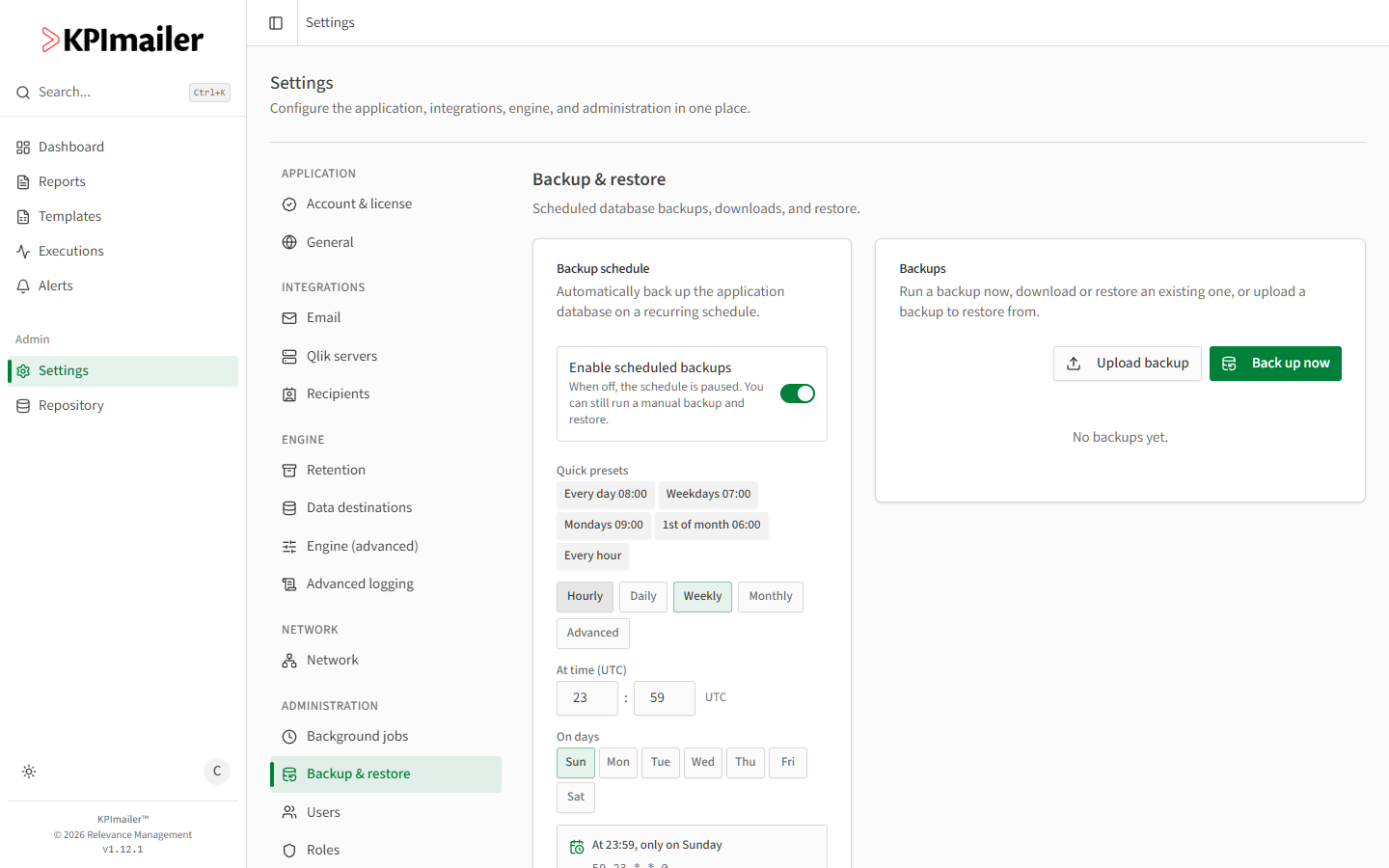
- Open Settings → Backup & restore. Enable scheduled backups is on by default - turn it off to pause the schedule without losing your settings (you can still back up and restore manually).
- Pick a Quick preset (Every day 08:00, Weekdays 07:00, Mondays 09:00, 1st of month 06:00, Every hour), or build a custom schedule with the Frequency picker (Hourly, Daily, Weekly, Monthly, Advanced), the At time (UTC) fields, and On days. The card shows the resulting plain-language summary, its cron expression, and the next few run times.
- Set the Backup directory - a fully-qualified local or network (UNC) path. Leave it
blank to use the default (
C:\ProgramData\KPImailer\backups). - Set Keep for (days) to auto-delete old backups, and Maximum kept to cap the total number kept (0 = no limit).
- Select Save changes.
Run, download, or restore a backup
Section titled “Run, download, or restore a backup”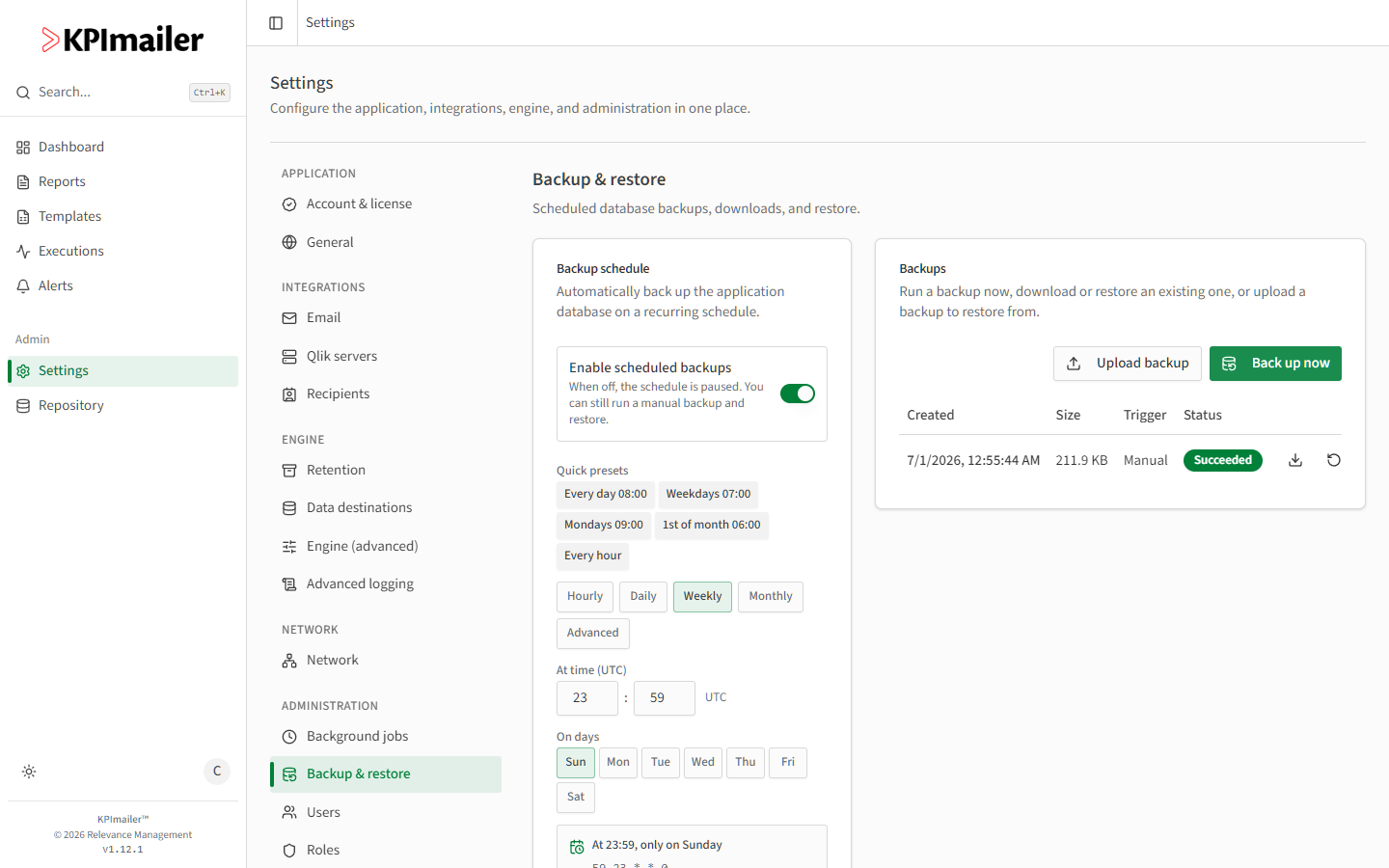
- Select Back up now to run a backup immediately, regardless of the schedule.
- Each backup in the list shows its Created time, Size, Trigger (Scheduled or Manual), and Status. Use the row actions to Download it, or Restore the database from it.
- Select Upload backup to restore from a backup file you have outside KPImailer - for example, one downloaded from another installation, or pulled from off-site storage.
When to change this
Section titled “When to change this”- Before a risky change (a major upgrade, a bulk data edit) - run a manual backup first with Back up now, regardless of what the schedule would otherwise do.
- Storage is tight - lower Keep for (days) or set a Maximum kept so backups don’t accumulate indefinitely.
- Compliance requires off-site copies - download backups regularly and store them elsewhere; KPImailer itself only manages the local (or UNC) Backup directory.
Worked example
Section titled “Worked example”Before a database engine upgrade, an administrator selects Back up now, waits for the row to show Succeeded, and downloads it to a separate machine as a safety copy. The upgrade proceeds; had something gone wrong, Restore on that backup would have returned the database to its pre-upgrade state.