Network configuration
Controls the public address users browse to, the HTTPS certificate the installation presents, and which other origins are allowed to call it.
-
Open Settings → Network.
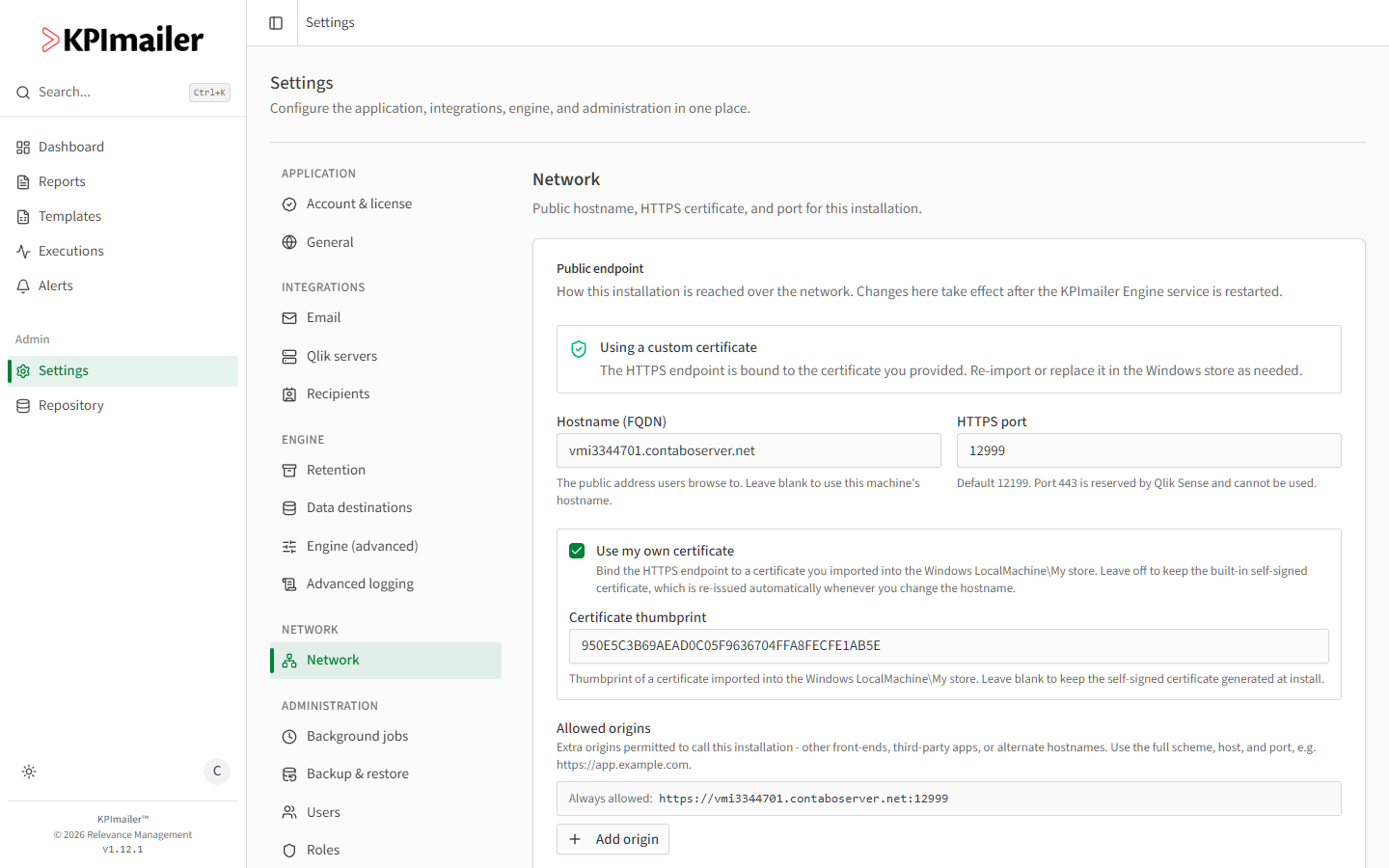
-
Set the Hostname (FQDN) - the public address users browse to. Leave it blank to use the machine’s own hostname.
-
Set the HTTPS port (default 12199). Port 443 is reserved by Qlik Sense and can’t be used.
-
By default, KPImailer uses a built-in self-signed certificate, automatically re-issued for the new hostname whenever you save - it’s trusted only on the machine it runs on. To use a real certificate instead, turn on Use my own certificate and enter the Certificate thumbprint of a certificate already imported into the Windows
LocalMachine\Mystore. -
Under Allowed origins, add any extra origin (full scheme, host, and port, e.g.
https://app.example.com) that needs to call this installation - other front-ends, third-party apps, or alternate hostnames. The installation’s own address is always allowed and shown for reference. -
Select Save changes.
When to change this
Section titled “When to change this”- Moving the installation to a new domain or server name - update Hostname (FQDN) first; the self-signed certificate re-issues automatically.
- Browsers on other computers show certificate warnings - either accept that the built-in certificate is only trusted on the host machine, or switch to Use my own certificate with a properly issued one.
- A third-party app or alternate front-end needs to call KPImailer’s API - add its origin to Allowed origins rather than disabling browser security checks elsewhere.
Worked example
Section titled “Worked example”KPImailer was reachable only by IP address during initial setup, but the organization now
wants it at a proper internal hostname. An administrator sets Hostname (FQDN) to
reports.contoso.com, saves, and restarts the Engine service - the built-in certificate is
re-issued for the new name, and users browsing to the new hostname no longer hit a hostname
mismatch warning.