Using a template in a report
Attaches a published template to a report, so every run produces a filled-in copy of the workbook as an Excel attachment on the email.
-
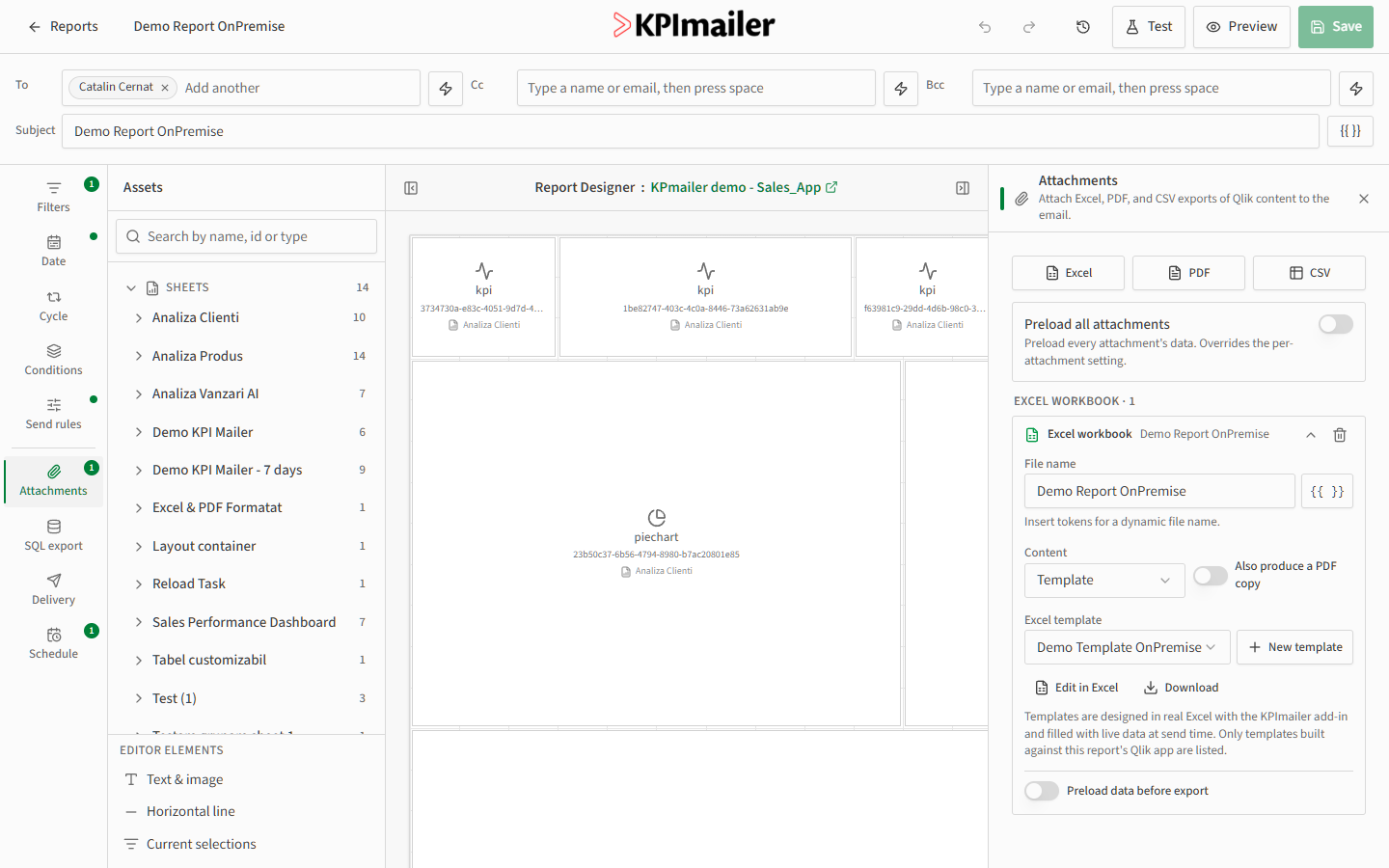
In the report editor, open the Attachments tab and select Excel.
-
For Content, choose Template.
-
Pick the template from the Excel template dropdown.
-
Optionally turn on Also produce a PDF copy to get both formats from the same run.
-
Use Edit in Excel to open the template and adjust its design, or Download to get a copy of the current published version - both without leaving the report editor.
Worked example
Section titled “Worked example”A finance team’s monthly close report needs the polished workbook a colleague designed separately. In the report’s Attachments tab, they add an Excel attachment, set Content to Template, and pick Monthly close workbook from the dropdown. From then on, every scheduled run fills that workbook with the run’s live data and attaches it to the email - no manual export required.