Background jobs
Lists every scheduled job running inside KPImailer - report schedules and system maintenance alike - with its cron expression, last and next run, and status.
-
Open Settings → Background jobs. The table lists every job by Name, Schedule (cron expression), Last Run, Next Run, and Status.
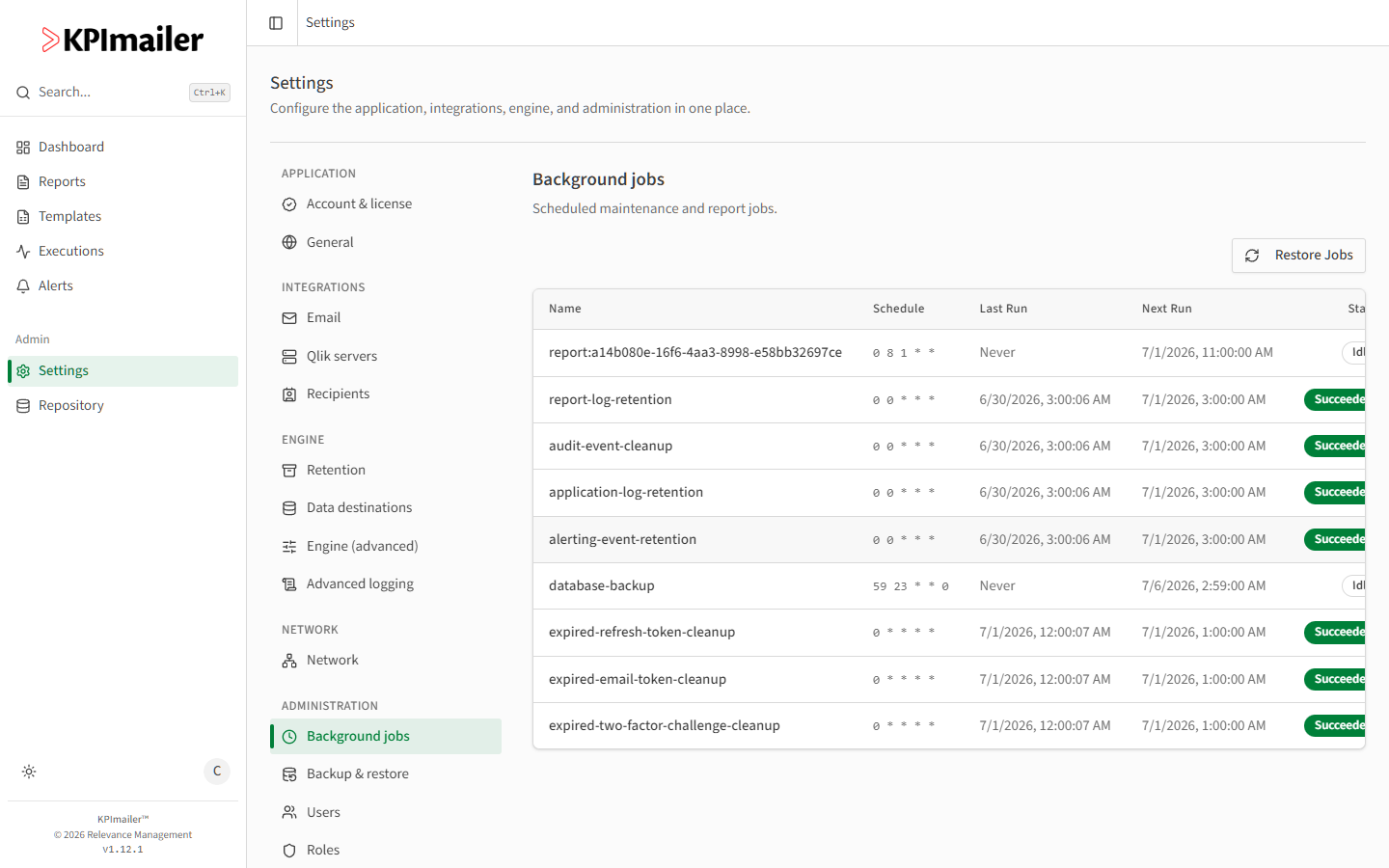
Each report’s own schedule appears here too, prefixed
report:followed by its ID, plus system maintenance jobs likereport-log-retention,audit-event-cleanup,application-log-retention,alerting-event-retention,database-backup,expired-refresh-token-cleanup, andexpired-email-token-cleanup. -
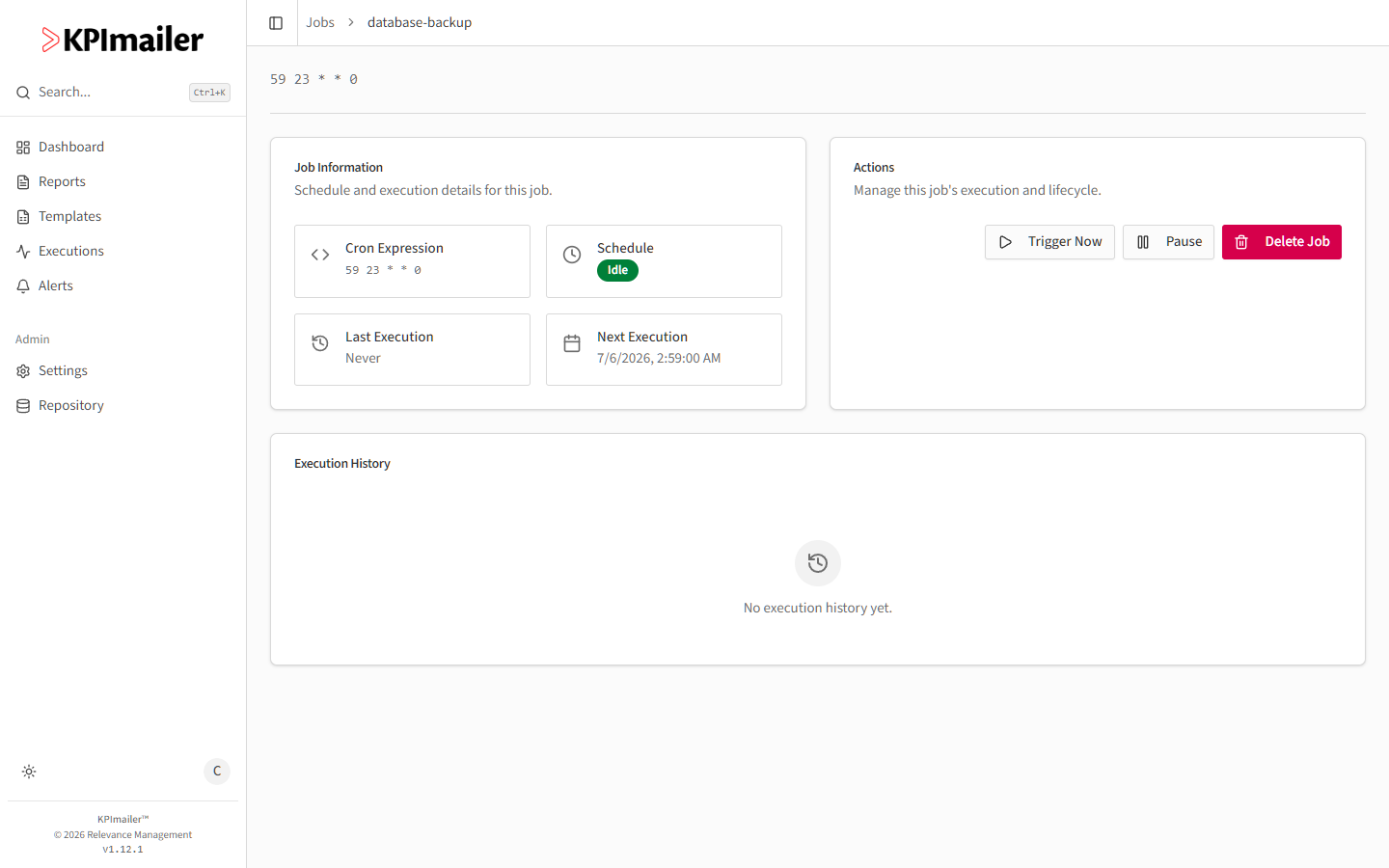
Select a job’s name to open its detail page.
-
From the detail page, Trigger Now runs the job immediately, Pause stops it from running on schedule (without deleting it), and Delete Job removes it entirely. The Execution History table below shows past runs.
-
If a job is missing or stuck, use Restore Jobs on the main Background jobs page to re-register the standard system jobs.
Worked example
Section titled “Worked example”A report’s schedule looks correct in its editor, but it isn’t firing. An administrator opens
Settings → Background jobs, finds the report: entry for that report, and checks its
Status and Last Run - if it shows Idle with a sensible Next Run, the schedule
is fine and the issue is elsewhere; if it’s missing entirely, Restore Jobs re-registers it.