Creating a template
Starts a new Excel template, tied to a Qlik app, and opens it in desktop Excel ready to design with the KPImailer add-in.
-
Go to Templates in the sidebar, then select New template.
-
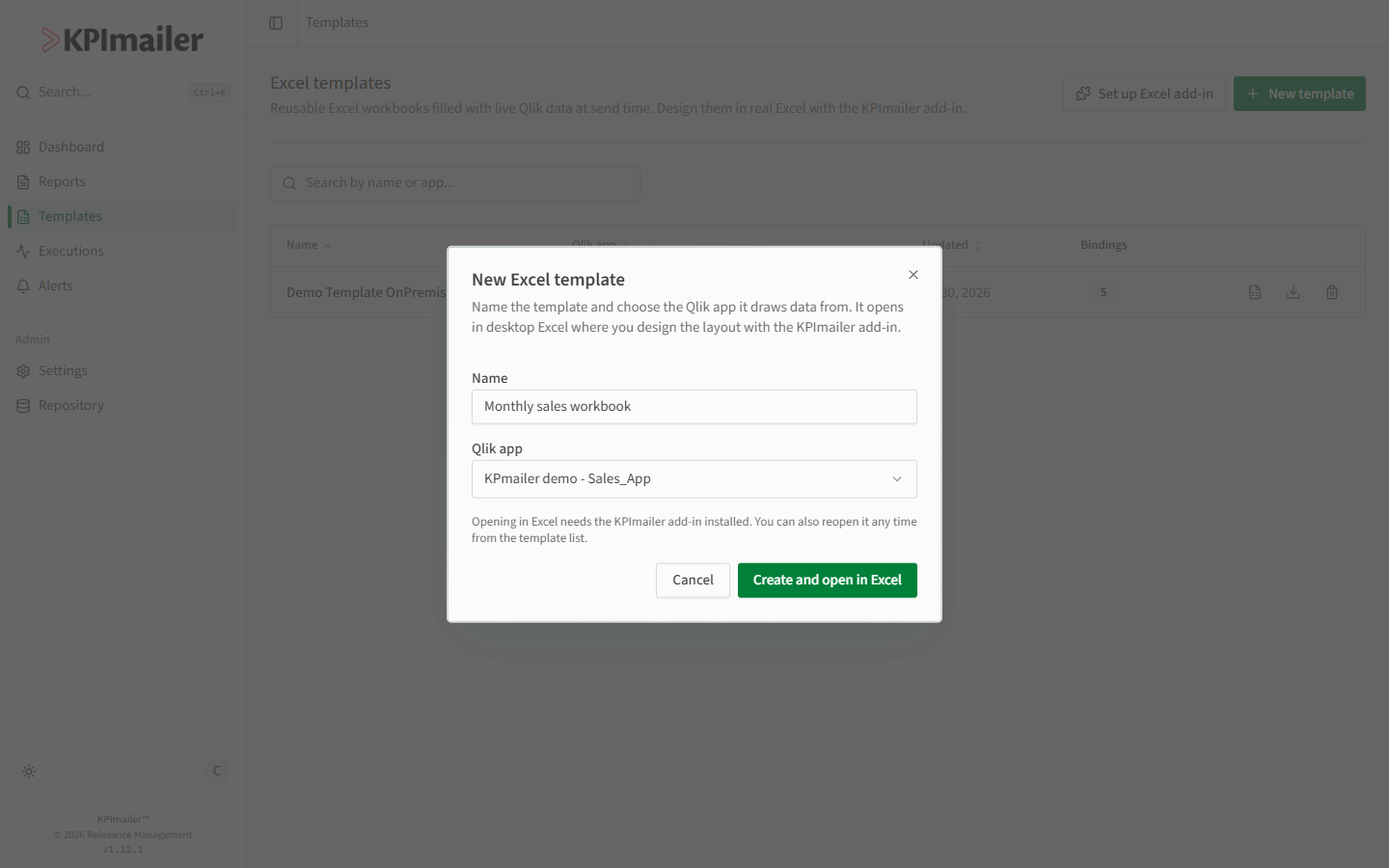
Give the template a clear name, and choose the Qlik app it should draw data from.
-
Select Create and open in Excel. KPImailer launches desktop Excel with the new, empty workbook and opens the KPImailer pane automatically.
-
Design the workbook in Excel using the KPImailer pane - covered in the rest of this chapter - then save and close. KPImailer publishes your changes back to the template.
The templates list
Section titled “The templates list”Back on Templates, every template shows the Qlik app it’s tied to, when it was last updated, and a Bindings count - how many Qlik objects and tokens are placed in the workbook. Use Edit in Excel to reopen it for changes, Download to get a standalone copy, or Delete to remove it.
Worked example
Section titled “Worked example”A finance team wants a polished Excel workbook for their monthly close. They select New
template, name it “Monthly close workbook”, choose the Sales_App Qlik app, and select
Create and open in Excel. Excel opens with an empty sheet and the KPImailer pane ready
- continue with inserting Qlik objects & tokens.