Data destinations
Connects KPImailer to external SQL databases that reports can export live Qlik data into, alongside or instead of emailing it.
-
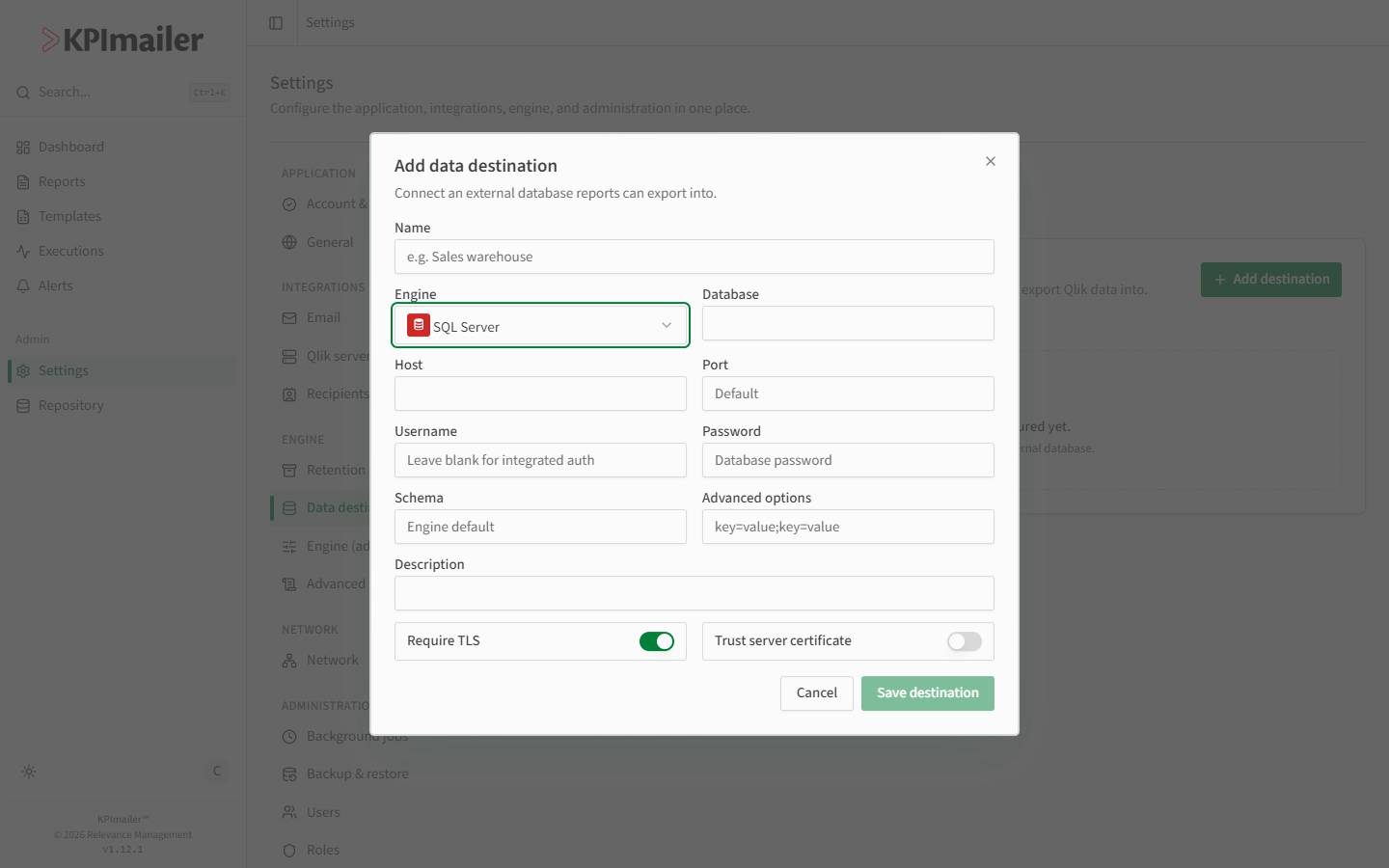
Open Settings → Data destinations and select Add destination.
-
Give it a Name and choose the Engine: SQL Server, PostgreSQL, MySQL, or Oracle.
-
Fill in Database, Host, and Port (leave Port blank for the engine’s default).
-
Set Username and Password - leave Username blank for integrated authentication where supported. Passwords are encrypted and never shown again.
-
Optionally set a Schema (defaults to the engine’s default) and Advanced options as
key=value;key=valuepairs for connection-string extras your database needs. -
Add a Description to help report authors pick the right destination.
-
Leave Require TLS on unless your database doesn’t support encrypted connections. Only enable Trust server certificate for trusted internal servers where you’re skipping certificate validation deliberately.
-
Select Save destination.
When to change this
Section titled “When to change this”- Standing up a new data warehouse or reporting database - add it here once, then any report author can export into it.
- Database credentials rotate - edit the destination and update Username / Password; existing reports keep working without changes since they reference the destination by name.
- A destination is retired - remove it here, and update any reports that exported to it.
Worked example
Section titled “Worked example”A finance team wants commission data landed in their own SQL Server warehouse instead of just emailed. An administrator adds a destination named “Finance warehouse” with the warehouse’s host, port, and a dedicated read/write account, leaves Require TLS on, and saves. The commission report’s author then picks “Finance warehouse” under SQL data exports so every run lands a copy in the warehouse automatically.