Installing the Excel add-in
Enables the KPImailer task pane inside desktop Excel, so you can design templates and have them filled with live Qlik data.
-
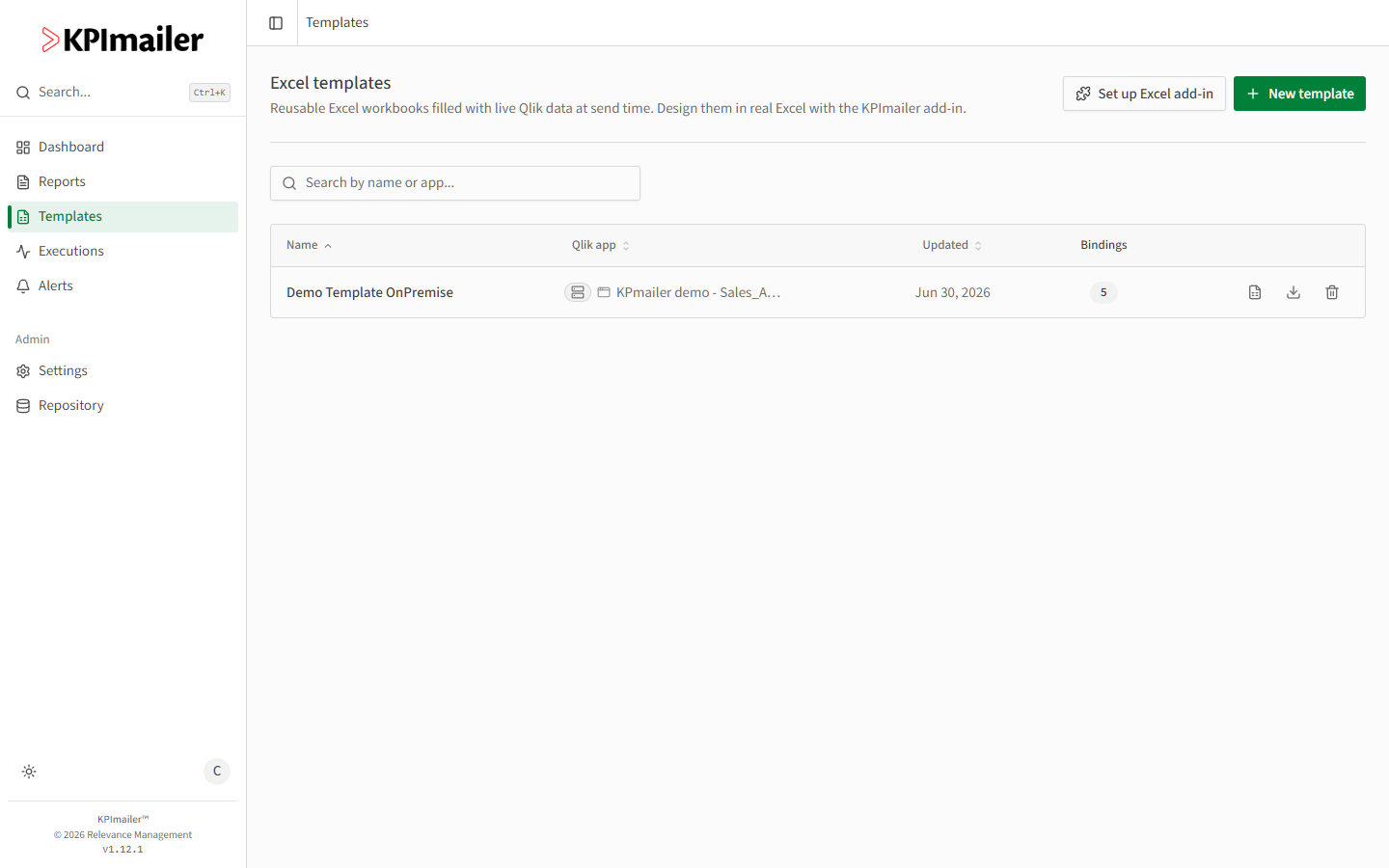
From Templates, select Set up Excel add-in.
-
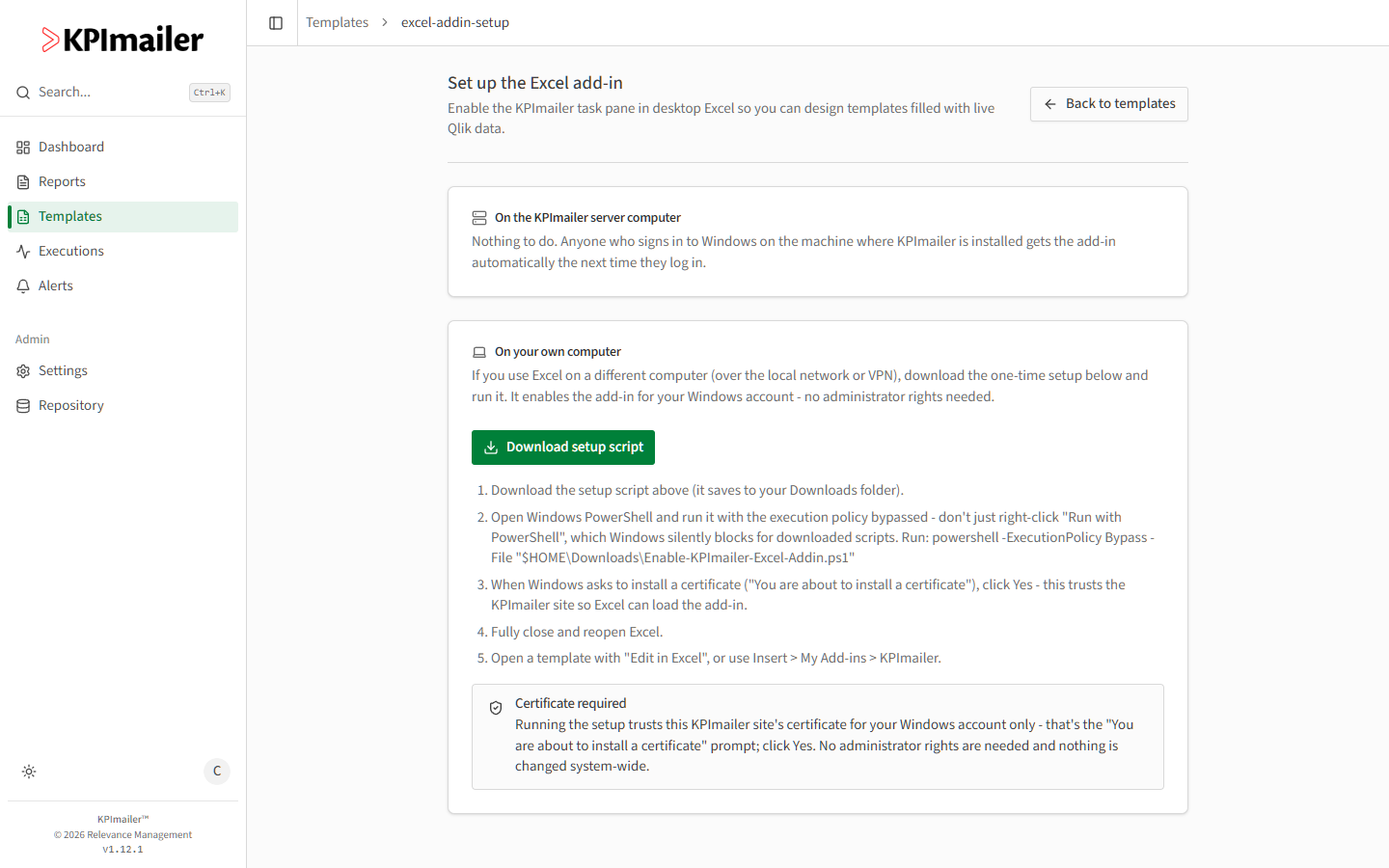
Read which case applies to you:
- On the KPImailer server computer - nothing to do. Anyone who signs in to Windows on the machine where KPImailer is installed gets the add-in automatically the next time they log in.
- On your own computer (using Excel over the local network or VPN) - follow the one-time setup below.
-
Select Download setup script - it saves a PowerShell script to your Downloads folder.
-
Open Windows PowerShell and run it with the execution policy bypassed:
powershell -ExecutionPolicy Bypass -File "$HOME\Downloads\Enable-KPImailer-Excel-Addin.ps1" -
When Windows asks “You are about to install a certificate”, select Yes. This trusts the KPImailer site for your Windows account only - no administrator rights are needed, and nothing changes system-wide.
-
Fully close and reopen Excel.
-
Open a template with Edit in Excel, or add the pane manually from Insert → My Add-ins → KPImailer.
Worked example
Section titled “Worked example”A report author who works from a laptop over VPN, separate from the KPImailer server, downloads the setup script, runs it with the execution-policy bypass, accepts the certificate prompt, and restarts Excel. The next time they select Edit in Excel on a template, the KPImailer pane opens automatically alongside the workbook.